Every week someone asks whether their connection is fast enough for IPTV, usually while looking at a speed test that says 200 Mbps and a television that keeps freezing. Those two facts are not contradictory, and understanding why is the whole point of this article.
A live stream does not need a big pipe. It needs a consistent pipe. Video arrives as a continuous flow at a fixed bitrate, and if that flow is interrupted for two seconds, your buffer empties and the picture stops — regardless of how fast the connection was for the other fifty-eight seconds of the minute.
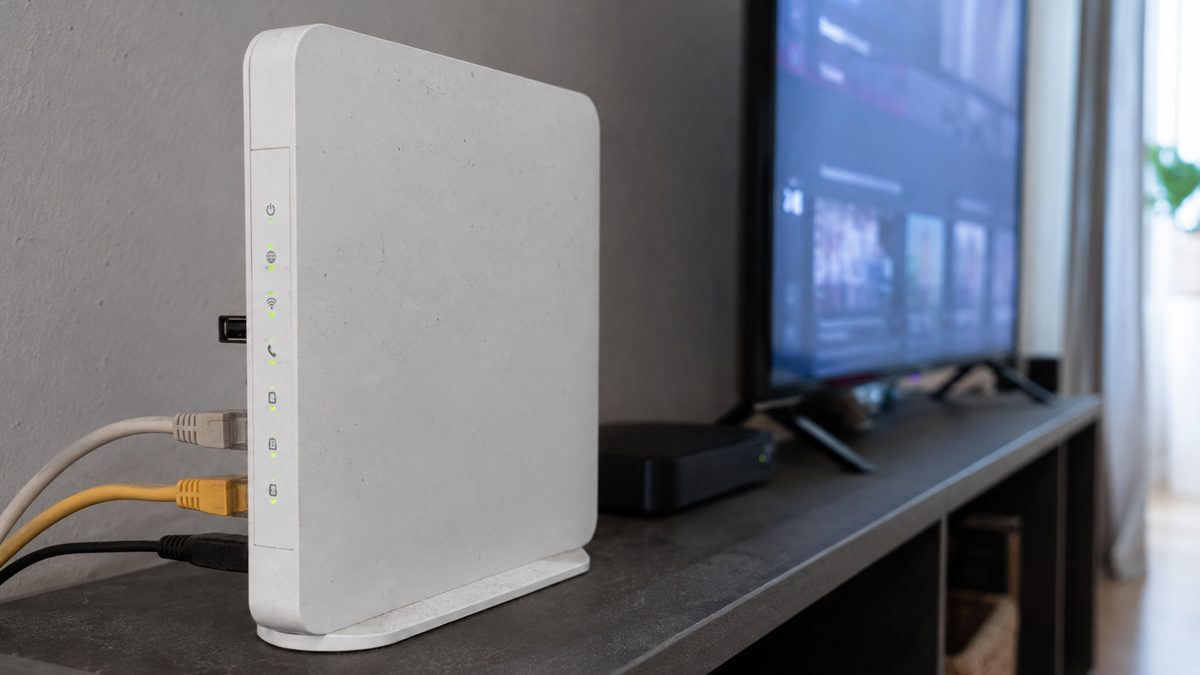
The numbers, by quality level
These are working figures for a single simultaneous stream, with enough headroom that normal household activity does not break playback. They assume modern H.264 or H.265 encoding, which is what any current provider uses.
| Quality | Typical bitrate | Recommended speed | Realistic use |
|---|---|---|---|
| SD (576p) | 1–2 Mbps | 5 Mbps | Mobile data, weak rural lines |
| HD (720p) | 3–5 Mbps | 15 Mbps | Bedroom TVs, tablets |
| Full HD (1080p) | 6–9 Mbps | 25 Mbps | The default for most viewing |
| 4K (2160p) | 15–25 Mbps | 35 Mbps | Main TV, sport, films |
Two things stand out. First, the recommended figure is roughly three times the bitrate — that gap is deliberate, because it absorbs the moments when a phone syncs photos or a console checks for updates. Second, even 4K sits comfortably inside what a standard fibre or good cable connection delivers. IPTV is not a bandwidth-hungry service by 2026 standards; a single 4K stream uses less than a large game download running in the background.
Sport is the exception worth planning for. Fast horizontal motion and crowd detail are the hardest things to compress, so a football match at 4K can spike well above its average bitrate for seconds at a time. If sport is why you subscribed, aim for the 35 Mbps figure rather than the 25 that would be fine for a drama series.
How many streams your line can really carry
Add the streams, then add a margin for everything else in the house. A rough table for planning:
| Connection | Comfortable 4K streams | Comfortable FHD streams |
|---|---|---|
| 25 Mbps | 0–1 | 2 |
| 50 Mbps | 1 | 4 |
| 100 Mbps | 2–3 | 8 |
| 300 Mbps and above | 6+ | Effectively unlimited for a household |
In a typical family home, the practical ceiling is almost never the internet connection. It is the router’s ability to keep several wireless devices happy at once, or the number of simultaneous connections your subscription plan allows. Check both before paying for a faster tier you do not need.
Why stability beats speed
Three measurements decide whether a stream holds, and only one of them appears in the headline number.
Throughput is the speed everyone quotes. It matters only up to the point where it exceeds the stream’s bitrate with headroom. Beyond that, more does nothing.
Jitter is the variation in arrival time between packets. Low jitter means video arrives in a smooth, even flow. High jitter means it arrives in clumps, and clumps empty a buffer. Under 30 milliseconds is healthy; over 100 and you will see stutter on an otherwise fast line.
Packet loss is the killer. Anything above roughly 1% produces visible artefacts and freezing, because lost video frames cannot be re-requested in a live stream the way a file download can retry. A connection with 3% loss at 300 Mbps will look far worse than a clean 30 Mbps line.
This is why the answer to “is my internet fast enough” is so often yes when the experience is still bad. The speed was never the problem.
How to test your connection properly
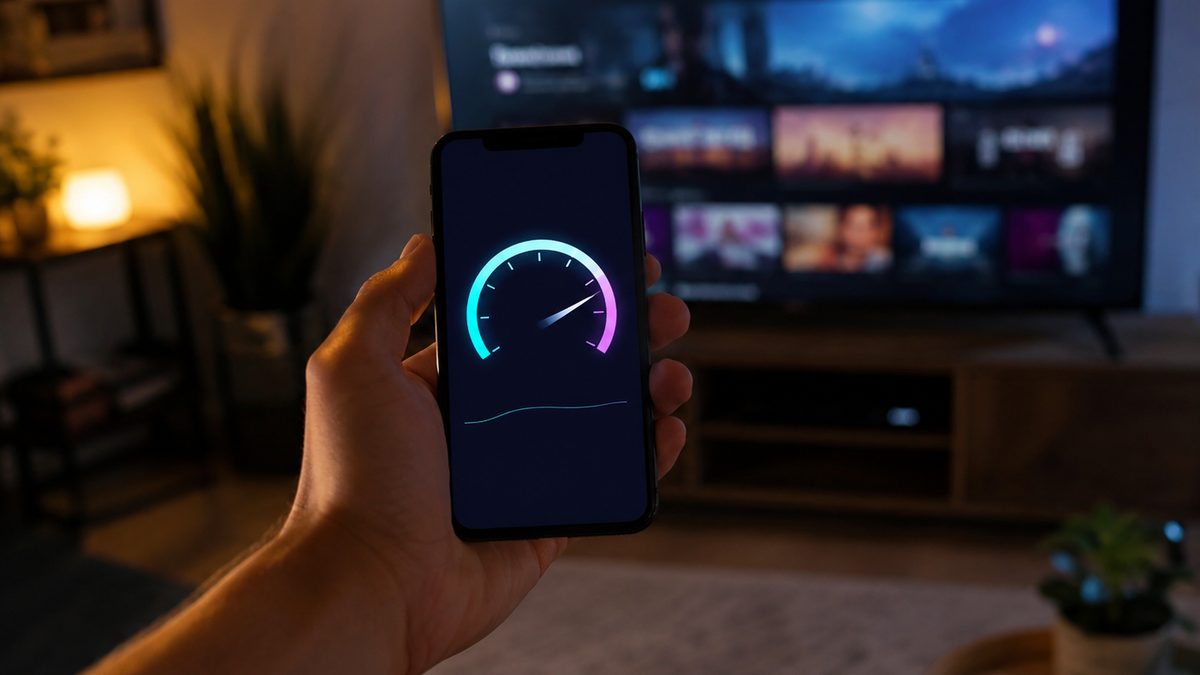
Most people test at the wrong place, at the wrong time, and draw the wrong conclusion. Do it like this instead.
- Test from the streaming device, not your laptop. A phone next to the TV is a reasonable proxy; a laptop in the office beside the router is not.
- Test at 21:00, not at 11:00. Peak-hour performance is the only performance that matters, because that is when you watch.
- Run a jitter and loss test, not just a speed test. Any of the standard tools will report all three if you look past the big number.
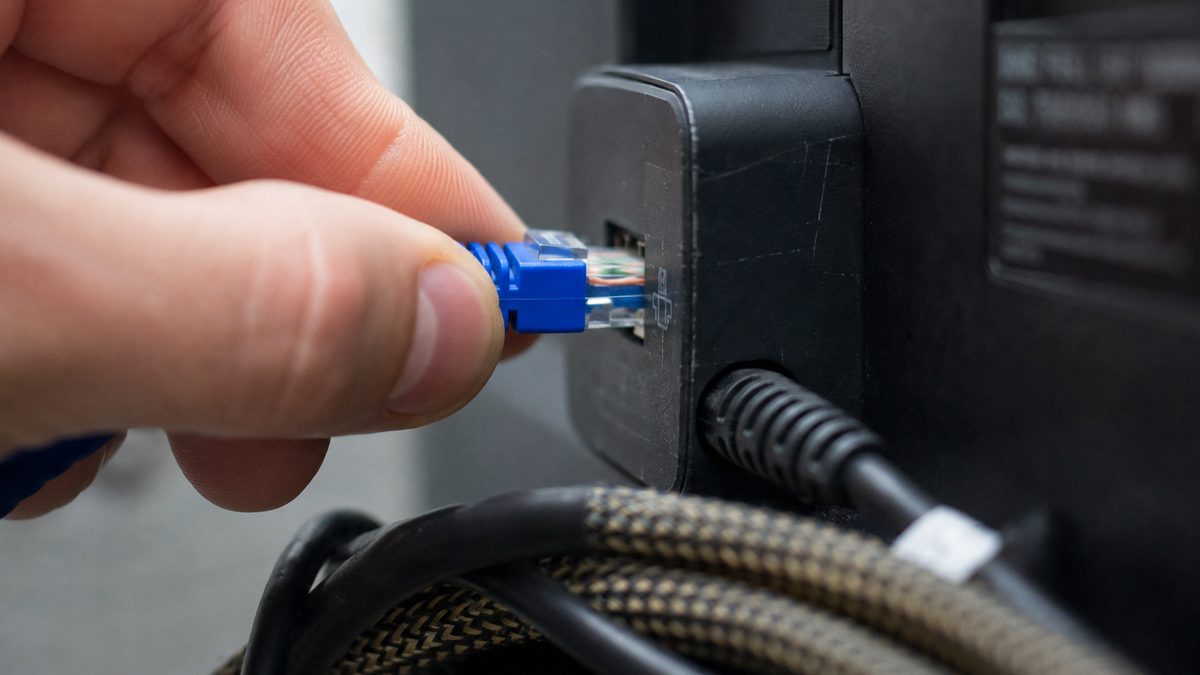
- Repeat it wired. Plug the device into the router with a cable, or use an ethernet adapter on a Firestick, and run the same test. The gap between the two results is your Wi-Fi problem, measured.
- Note the numbers. If you contact support later, “28 Mbps, 6 ms jitter, 0% loss at 21:00 over ethernet” gets you a real answer in one reply. “It keeps freezing” costs three days of back and forth.
Wi-Fi is usually the bottleneck, not the ISP
In our experience, somewhere around two thirds of speed-related complaints are wireless problems wearing an ISP costume. The signs are consistent: the speed test is fine, the router is two rooms away, and the stutter arrives in the evening when every neighbour’s network is also busy.
- Use 5 GHz, not 2.4 GHz. The 2.4 GHz band is crowded, slow and shared with everything from Bluetooth to baby monitors. 5 GHz carries far more over shorter distances, which is the right trade-off for a TV.
- Count the walls. Each solid wall between the router and the TV costs a meaningful chunk of signal. Two walls and a floor is where 4K starts to fail.
- Add a mesh node or powerline adapter rather than trusting a long-range wireless link. Both are cheaper than a faster internet plan.
- Cable it if you can. A ten-dollar ethernet adapter on a streaming stick eliminates the entire category of problem in one move.
- Restart the router monthly. Unplugged from power for thirty seconds, not rebooted from the app.
If a wired test is clean and a wireless test at the TV is not, no amount of upgrading your internet package will help. The money belongs in the network inside the house.
How much data does IPTV use per month?
This matters on capped connections and on mobile data. Rough hourly figures, then a realistic monthly total.
| Quality | Per hour | 4 hours a day, 30 days |
|---|---|---|
| SD | ~0.7 GB | ~84 GB |
| HD | ~1.8 GB | ~216 GB |
| Full HD | ~3.5 GB | ~420 GB |
| 4K | ~8 GB | ~960 GB |
A household that watches four hours a day, mostly in Full HD with the occasional 4K match, lands somewhere around 500 GB a month. On an unlimited fibre line that is irrelevant. On a 1 TB cap it is worth knowing, and it is a good reason to set the bedroom TV to the HD variant of a channel rather than the 4K one nobody can see the difference on from that distance anyway.
The short version
- 25 Mbps handles Full HD comfortably; 35 Mbps handles 4K, including sport.
- Jitter and packet loss break streams far more often than a lack of speed does.
- Test from the device, at peak hour, wired and wireless, and write the numbers down.
- Wi-Fi at the TV is the most common real cause. Ethernet or 5 GHz solves most of it.
- Expect roughly 3.5 GB per hour at Full HD if your connection has a data cap.
Give the TV priority with QoS
Almost every router made in the last decade has a Quality of Service page, and almost nobody opens it. It lets you tell the router which device wins when there is not enough bandwidth to go around — and on a busy evening, there rarely is.
Find the streaming device in the router’s client list, note its MAC address so the rule survives a new IP lease, and give it the highest priority band. Some routers expose this as a simple “prioritise this device” switch; others ask you to choose a traffic class, in which case video or streaming is the right one. The change costs nothing and it means a cloud backup on a laptop can no longer take the bandwidth your match needed.
Two related habits help just as much. Schedule large downloads and console updates for the early morning rather than the evening, and check the router’s device list once in a while — most homes are surprised by how many idle devices are connected, each of them waking up to sync at unpredictable moments.
What to do on a genuinely slow line
Some connections really are the problem — rural DSL, congested shared lines, mobile hotspots. IPTV still works on them, as long as you stop asking for 4K.
Set your player to the HD or FHD variant of the channels you watch and save those as favourites. A good provider publishes several quality tiers of every popular channel for exactly this reason, and on a 55-inch screen at normal viewing distance the difference between FHD and 4K is far smaller than the difference between a smooth picture and a frozen one.
Push the buffer up to eight or ten seconds. You lose fast channel changing and gain a stream that survives a dip. On a marginal line that is an obviously good trade.
Finally, test whether your provider is throttling streaming traffic: watch one evening normally, then watch the same channel through a VPN. If the VPN is dramatically better despite adding a network hop, throttling is the explanation and keeping the VPN on for streaming is the fix. Pick a server close to you so the detour costs as little latency as possible.
Questions people actually ask
Yes for one Full HD stream, provided it is a stable 20 Mbps with low jitter. It is not enough for 4K, and it will struggle if two people stream at once while someone else is on a video call.
Barely. Streaming is almost entirely download traffic. Upload only becomes relevant if someone in the house is doing a large cloud backup or a video call at the same time, because that traffic competes for the same connection.
Because a speed test measures a short burst of throughput, not consistency. Jitter, packet loss, a congested Wi-Fi channel or peak-hour throttling can all break a live stream on a connection that tests fast.
Yes, and 4G or 5G is often more stable than poor home Wi-Fi. Watch the data: about 3.5 GB per hour at Full HD. Drop to HD on a metered plan and raise the buffer to absorb signal dips while moving.
Only if you are genuinely short of bandwidth. Run a wired test first: if the wired result is clean and the wireless one at the TV is not, upgrading the plan changes nothing. Fix the Wi-Fi instead.

The one-line answer
If you have 25 Mbps arriving cleanly at the device, IPTV will work well. If you have 35 you can add 4K on top. Everything above that is headroom for the rest of the house — and everything below the level of a stable connection is a problem no speed tier can fix.
Related reading: Install IPTV on a Firestick · Best IPTV player apps · Full FAQ